Using Agents to Code
AI agents can generate code for your function blocks, accelerating the development workflow. This approach works particularly well in Orixen because each block is completely decoupled and has a small context — exactly what AI agents excel at.
To facilitate the usage of coding agents, Orixen automatically provides rich context to it, including how the block works, available environment variables, and database schemas.
Bring Your Own Agent
Orixen supports any CLI coding agents. Configure your preferred agent in the project settings.
Pre-configured Agents
| Agent | Default Command |
|---|---|
| Claude | claude --permission-mode plan "{prompt}" |
| Codex | codex "{prompt}" |
| Gemini | gemini "{prompt}" |
| Copilot | copilot "{prompt}" |
| Custom | User-defined command |
Command Syntax
- The
{prompt}placeholder is replaced with the generated prompt - The command runs in the block's folder directory
Setup Steps
- Open Menu > Project > Project Settings
- Select your agent type or choose "Custom"
- For custom agents: enter your command with the
{prompt}placeholder
Spec-Driven Development
Before generating code, define what your function should do. This spec-driven approach ensures the agent understands your intent and produces relevant code.
If your project uses a database and you have configured database context (see below), there is no need to provide much detail of your database in the schema, the agent will just know it.
A good spec includes:
- Purpose: What the function does
- Input: Expected input with types
- Output: Expected output with types
Example spec:
This block receives a "text" and searches for emails using regex,
then returns the list of emails found.

Input:
 - text: string

Output:
 - string[]
Writing Effective Specs
Be specific about types and edge cases. The more detail you provide, the better the generated code will match your needs.
Context Provided by Orixen
Orixen generates context files in each block folder to help agents understand your project. You can check those files in the root folder of each block.
BLOCK.md
Block-specific context including:
- How the block works
- Available environment variables
- Input sample file locations
- Block-specific instructions
DB.md
Database context (when configured, see below how to do it):
- Database schema structure
- Table columns, types, and constraints
- Primary and foreign key relationships
- Sample data (last 5 rows per table)
Rich Context
The agent reads these files automatically. You don't need to copy-paste database schemas or explain how blocks work—Orixen handles it.
Setting Up Database Context
If your functions interact with databases, configure database context so agents can write database-aware code.
DB Environment Variables
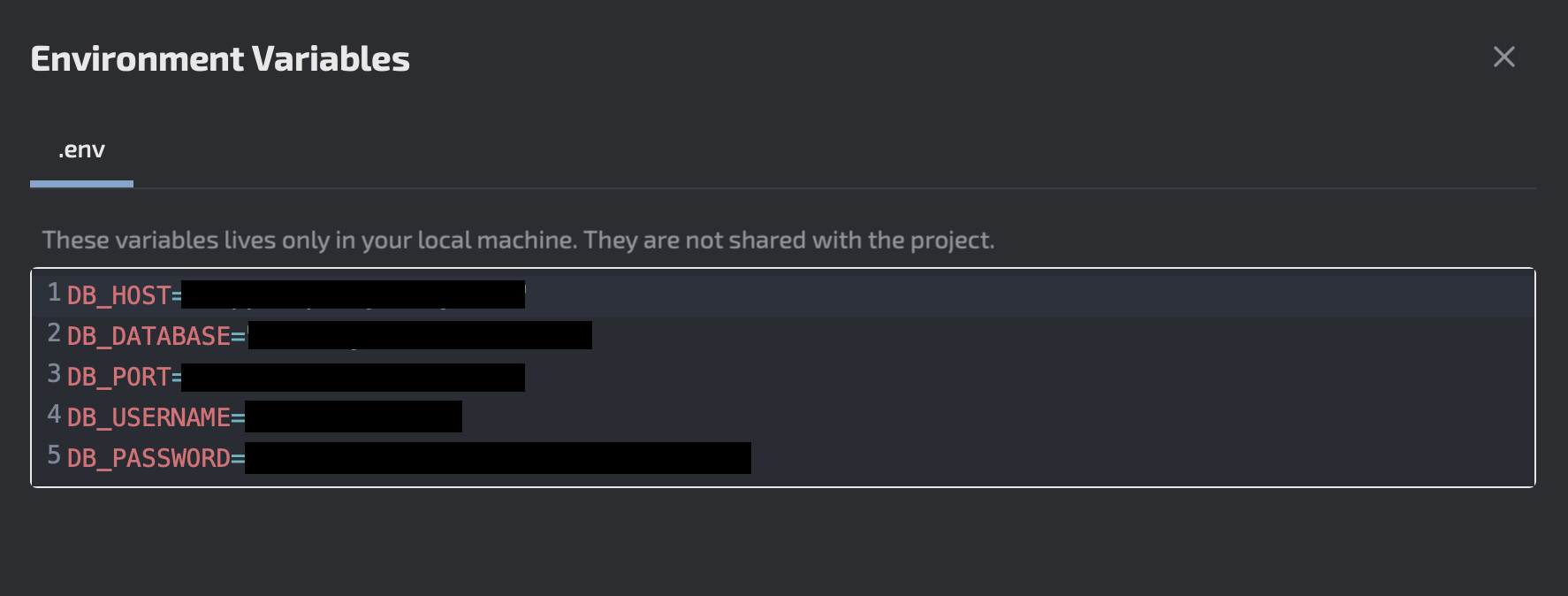
First, navigate to Menu > Project > Project Env and create environment variables for your database connection:
Database Sync Process
Navigate to Menu > Agent > Database Settings and enter your database details. Test the connection to ensure everything is set up correctly. When you save database settings, Orixen:
- Connects and queries your database structure
- Extracts table schemas and sample data
- Generates the DB.md file
- Copies it to all function blocks
Use Menu > Agent > Sync Agents to update context after database changes.
Workflow: From Spec to Code
- Double-click the function block
- Click "Code with Agent"
- Write your spec (purpose, input, output)
- Click "Start Agent"
- A terminal opens with your agent command
- The agent reads BLOCK.md and DB.md for context
- The agent generates code in the block folder
- Review the code in your preferred editor
The generated code appears in your block's folder. Open it with your preferred code editor—VS Code, Cursor, Vim, or any other.
After Code Generation
Once the agent generates your code:
- Review: Check the generated code in your editor
- Test: Use the local testing feature (double-click block > Run)
- Iterate: Refine the spec and regenerate if needed
- Share: Publish tested blocks for reuse
For details on function structure and coding patterns, see How to Code Your Function.
After testing, you can share your blocks within your project, organization, or publicly. See Sharing and Reusing Functions.
Best Practices
Writing Effective Specs
- Be specific about types: Include types for inputs and outputs
- Describe edge cases: Mention what should happen with empty inputs or errors
- Reference external services: Note any APIs or services the function uses
- Use database table names: Reference specific tables when working with databases
Working with Agents
- Start with simple specs and iterate
- Review generated code before testing
- Use the local testing feature to validate behavior
- Keep functions focused on a single responsibility
Always Review Generated Code
AI-generated code should be reviewed before deployment. Check for security issues, error handling, and edge cases.